5 Must-Have EdTech Solutions for Blended Learning
Identify 5 essential EdTech solutions that support effective blended learning models in schools and universities.
Identify 5 essential EdTech solutions that support effective blended learning models in schools and universities.
5 Must-Have EdTech Solutions for Blended Learning
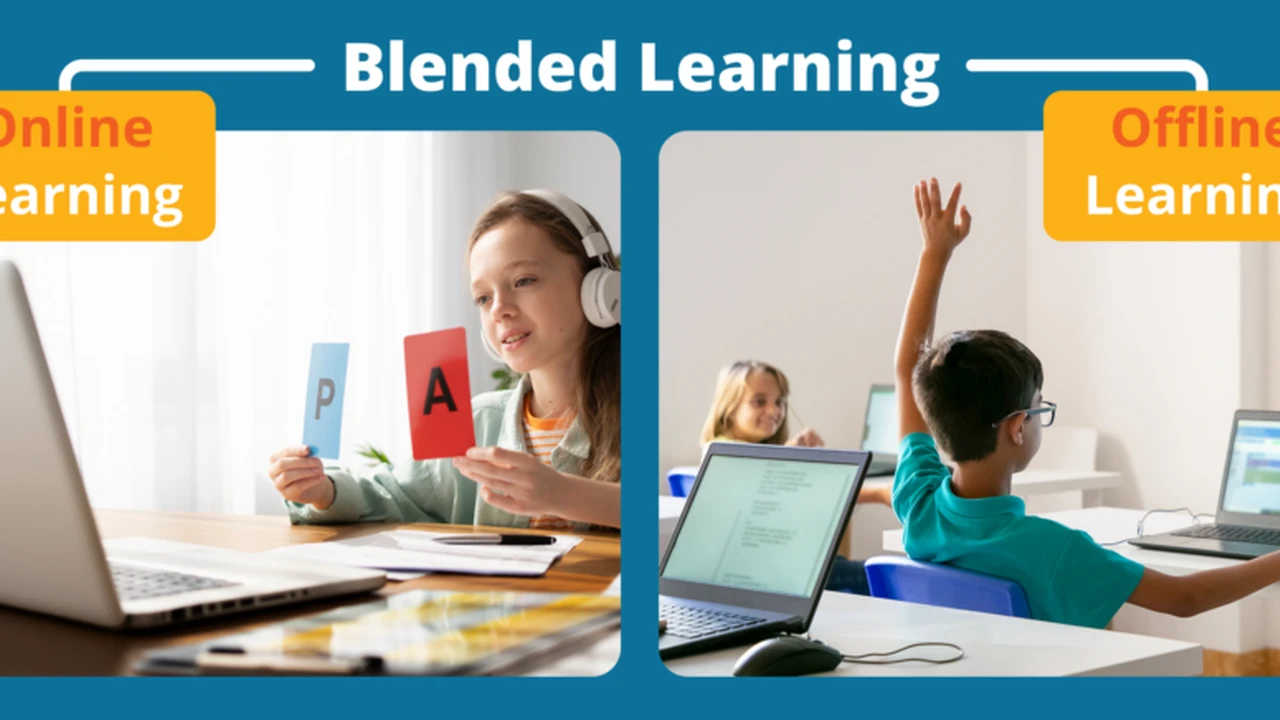
Hey everyone! Let's talk about blended learning. It's not just a buzzword anymore; it's a fundamental shift in how we approach education, combining the best of face-to-face instruction with the flexibility and resources of online learning. But making blended learning truly effective requires the right tools. You can't just throw some videos online and call it a day. You need a robust ecosystem of EdTech solutions that work together seamlessly. Today, we're diving deep into five essential EdTech solutions that are absolutely crucial for any school or university looking to implement or enhance their blended learning models. We'll look at specific products, their use cases, compare them, and even touch on pricing, because let's be real, budgets matter!
Learning Management Systems LMS The Core of Blended Learning
First up, and arguably the most critical piece of the puzzle, is a solid Learning Management System, or LMS. Think of your LMS as the central hub for all your blended learning activities. It's where students access course materials, submit assignments, participate in discussions, and track their progress. For educators, it's where you manage content, grade work, communicate with students, and monitor engagement. Without a robust LMS, blended learning quickly becomes a chaotic mess of scattered resources and frustrated users.
Key Features to Look for in an LMS for Blended Learning
- Content Management: Easy upload and organization of various content types (documents, videos, links, SCORM packages).
- Assignment and Assessment Tools: Support for diverse assignment types, quizzes, rubrics, and gradebooks.
- Communication and Collaboration: Discussion forums, announcements, messaging, and group work functionalities.
- Analytics and Reporting: Tools to track student engagement, performance, and course effectiveness.
- Integration Capabilities: Ability to connect with other EdTech tools (video conferencing, plagiarism checkers, etc.).
- Mobile Accessibility: A responsive design or dedicated app for learning on the go.
Product Spotlight LMS Comparison
1. Canvas LMS by Instructure
Use Case: Canvas is a powerhouse, widely adopted by universities and K-12 districts globally. It's known for its intuitive user interface, robust feature set, and strong community support. It excels in creating highly interactive and engaging blended learning environments, offering features like SpeedGrader for quick feedback, Modules for structured content delivery, and extensive integration options with third-party tools.
Pros: User-friendly, highly customizable, excellent mobile experience, strong analytics, extensive integrations.
Cons: Can be overwhelming for new users due to its vast features, pricing can be higher for smaller institutions.
Pricing: Canvas offers a free basic version for individual educators (Canvas Free for Teachers). For institutions, pricing is typically subscription-based, negotiated directly with Instructure, and depends on the number of users and specific features required. Expect it to be in the range of several dollars per student per year for larger deployments.
2. Moodle
Use Case: Moodle is an open-source LMS, making it incredibly flexible and customizable. It's popular with institutions that have strong IT support and want to tailor their learning environment precisely to their needs. It's particularly strong in supporting diverse pedagogical approaches and offers a vast array of plugins for extended functionality. Many K-12 schools and smaller universities appreciate its cost-effectiveness.
Pros: Open-source (free to use, but hosting/support costs apply), highly customizable, large global community, strong security features.
Cons: Can require technical expertise for setup and maintenance, interface can feel less modern than commercial alternatives, some advanced features require plugins.
Pricing: Moodle itself is free. However, institutions will incur costs for hosting, technical support, customization, and potentially premium plugins. These costs can vary widely but are often more budget-friendly than proprietary solutions, especially if you have in-house IT capabilities.
3. Google Classroom
Use Case: Google Classroom is a fantastic option for K-12 schools and even some higher education institutions already heavily invested in the Google Workspace ecosystem. It's incredibly easy to use, integrates seamlessly with Google Docs, Sheets, Slides, and Drive, and simplifies assignment distribution and collection. It's less of a full-fledged LMS and more of a streamlined assignment and communication platform, perfect for augmenting traditional teaching with digital components.
Pros: Extremely easy to use, seamless integration with Google Workspace, free for educational institutions, good for basic blended learning needs.
Cons: Lacks some advanced LMS features (e.g., robust quizzing, detailed analytics, complex course structures), less customizable than Canvas or Moodle.
Pricing: Free for schools and universities with Google Workspace for Education accounts.
Video Conferencing Platforms Enhancing Live Interaction in Blended Learning
Even in a blended model, live interaction remains vital. Video conferencing platforms bridge the gap between physical and virtual classrooms, allowing for synchronous lessons, guest speakers, virtual office hours, and collaborative group work. They are essential for maintaining a sense of community and providing real-time feedback, especially when students are learning remotely or in a hybrid setup.
Key Features for Blended Learning Video Conferencing
- Screen Sharing: For presentations and demonstrations.
- Recording Capabilities: To allow students to review sessions later.
- Breakout Rooms: For small group discussions and collaborative activities.
- Chat Functionality: For questions and quick communication.
- Interactive Whiteboard: For collaborative brainstorming and problem-solving.
- Polling and Q&A: To engage students and gauge understanding.
- Integration with LMS: For easy scheduling and access from within the course.
Product Spotlight Video Conferencing Comparison
1. Zoom for Education
Use Case: Zoom has become almost synonymous with video conferencing, and its education-specific features make it a strong contender for blended learning. It's reliable, easy to use, and offers robust features like breakout rooms, virtual whiteboards, and comprehensive recording options. Its stability and widespread familiarity make it a go-to for many institutions.
Pros: High-quality video and audio, reliable, extensive features for education, easy to use, good integration with many LMS platforms.
Cons: 'Zoom fatigue' is real, security concerns have been raised in the past (though largely addressed), free tier has time limits.
Pricing: Zoom offers discounted education plans. Basic accounts are free with a 40-minute limit for group meetings. Paid plans for education vary based on the number of hosts and features, typically starting from around $150-$200 per host per year for Pro plans, with custom enterprise pricing for larger institutions.
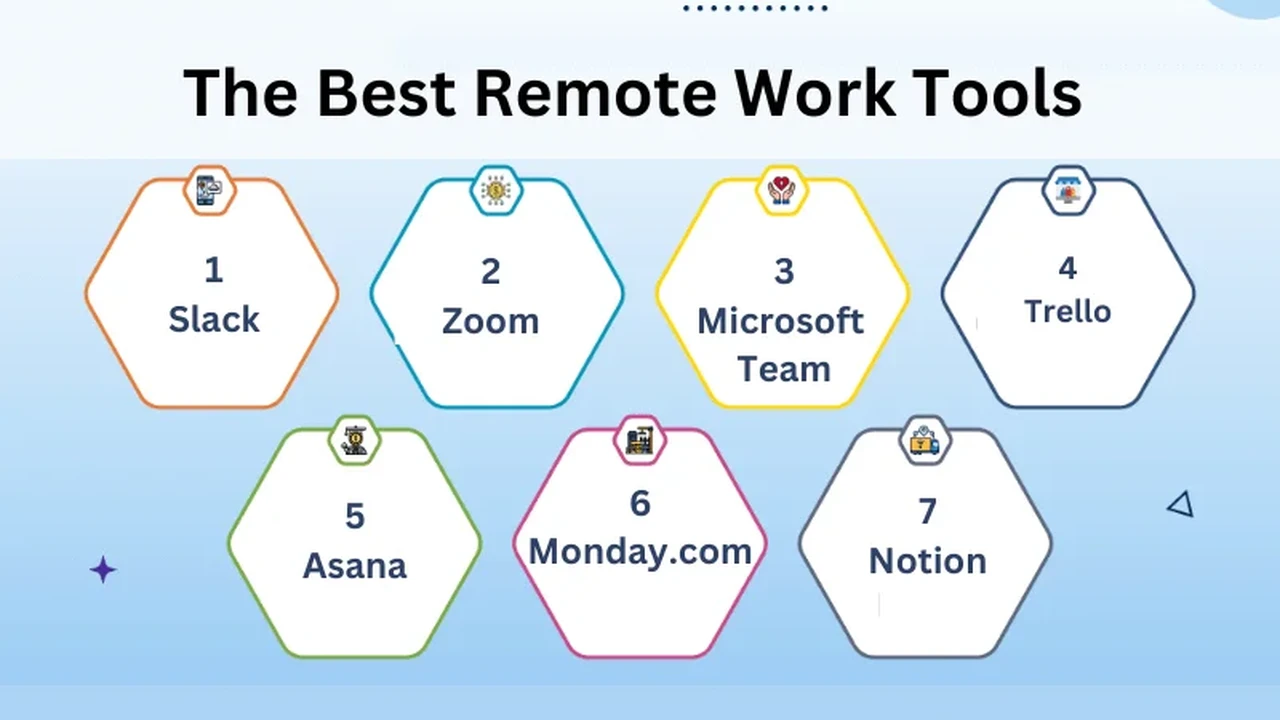
2. Microsoft Teams for Education
Use Case: If your institution is already using Microsoft 365, Teams is a natural fit. It's more than just a video conferencing tool; it's a collaborative hub that integrates chat, file sharing, and video meetings. It's excellent for creating persistent class teams where students and teachers can communicate, share resources, and hold live sessions, making it ideal for a holistic blended learning environment.
Pros: Deep integration with Microsoft 365 apps, robust collaboration features, persistent chat, good for team-based learning, often included with existing licenses.
Cons: Can have a steeper learning curve than Zoom for some users, resource-intensive on older devices, meeting features can be less intuitive than dedicated video conferencing tools.
Pricing: Included with Microsoft 365 Education licenses (A1, A3, A5), which are often free or heavily discounted for educational institutions.
3. Google Meet
Use Case: Similar to Google Classroom, Google Meet shines for institutions within the Google Workspace ecosystem. It's straightforward, reliable, and integrates seamlessly with Calendar and Classroom for easy scheduling and access. While it might not have all the bells and whistles of Zoom, its simplicity and integration make it a strong choice for everyday virtual meetings and synchronous lessons.
Pros: Easy to use, seamless integration with Google Workspace, reliable, good for basic video conferencing needs.
Cons: Fewer advanced features compared to Zoom (e.g., less robust breakout room management), recording features might be limited depending on your Google Workspace edition.
Pricing: Included with Google Workspace for Education accounts, which are free for eligible institutions.
Interactive Content Creation Tools Engaging Students in Blended Learning
Blended learning thrives on engaging content. Static PDFs and lengthy lectures just won't cut it. Interactive content creation tools allow educators to transform traditional materials into dynamic, engaging experiences that cater to diverse learning styles. These tools can help create quizzes, interactive videos, simulations, and gamified activities that keep students actively involved whether they're learning online or in person.
Key Features for Interactive Content Tools
- Variety of Interaction Types: Quizzes, polls, drag-and-drop, hotspots, branching scenarios.
- Multimedia Support: Embed images, audio, video, and animations.
- Ease of Use: Intuitive interface for educators without extensive technical skills.
- SCORM/LTI Compliance: For easy integration with your LMS.
- Analytics: Track student performance and engagement with the content.
Product Spotlight Interactive Content Comparison
1. H5P
Use Case: H5P is an open-source framework that allows you to create rich, interactive HTML5 content directly within your browser. It offers a wide range of content types, from interactive videos and presentations to quizzes and games. It's fantastic for educators who want to add a layer of interactivity to their existing materials without needing to learn complex coding. It integrates well with many LMS platforms.
Pros: Free and open-source, wide variety of content types, easy to use, good for creating engaging activities, integrates with many LMS platforms.
Cons: Requires a compatible platform (like an LMS with H5P plugin) or a separate H5P hub for hosting, some content types can be basic.
Pricing: Free to use. You might incur costs for hosting if you use a dedicated H5P hub or if your LMS doesn't natively support it and requires a plugin.
2. Articulate Storyline 360
Use Case: For institutions looking for professional-grade e-learning development, Articulate Storyline 360 is a top choice. It's a powerful authoring tool that allows educators and instructional designers to create highly customized, interactive courses, simulations, and assessments. It's ideal for developing sophisticated, polished content that can be deployed across various platforms.
Pros: Extremely powerful and flexible, creates highly interactive and engaging content, excellent for complex simulations, strong community support.
Cons: Steeper learning curve, can be expensive, requires a desktop application (though it's part of a cloud suite).
Pricing: Articulate 360 (which includes Storyline 360) is a subscription service. For academic institutions, pricing is typically discounted, starting around $499 per user per year for academic licenses. Enterprise pricing is available upon request.
3. Nearpod
Use Case: Nearpod is a fantastic tool for making presentations and lessons interactive, whether in a physical classroom or a blended online setting. It allows educators to embed quizzes, polls, open-ended questions, virtual field trips, and collaborative boards directly into their slides. Students can participate on their own devices, making every lesson an engaging experience. It's particularly popular in K-12 but also has applications in higher education.
Pros: Very easy to use, highly engaging for students, integrates well with Google Slides and PowerPoint, offers a library of pre-made lessons.
Cons: Free version has limitations on storage and class size, some advanced features require a paid subscription.
Pricing: Nearpod offers a free basic plan with limited storage and class size. Paid plans for educators start around $120-$150 per year, with school and district-wide licenses available at custom pricing.
Assessment and Feedback Tools Streamlining Evaluation in Blended Learning
Effective assessment and timely feedback are cornerstones of successful learning, and this is especially true in blended environments. Dedicated assessment tools go beyond basic LMS quizzes, offering more sophisticated question types, robust proctoring options, and detailed analytics. They help educators understand student comprehension, identify areas for improvement, and provide constructive feedback efficiently.
Key Features for Assessment and Feedback Tools
- Diverse Question Types: Multiple choice, essay, short answer, matching, drag-and-drop, coding questions.
- Automated Grading: For objective question types to save educator time.
- Rubric Support: For consistent and transparent grading of subjective assignments.
- Plagiarism Detection: To ensure academic integrity.
- Proctoring Options: For secure online exams.
- Detailed Analytics: Item analysis, student performance reports.
- Feedback Mechanisms: Tools for providing rich, timely feedback.
Product Spotlight Assessment Comparison
1. Turnitin
Use Case: Turnitin is the gold standard for promoting academic integrity and providing feedback on written assignments. While primarily known for its plagiarism detection capabilities, it also offers powerful tools for grading and providing feedback through its Feedback Studio. It's indispensable for any institution where written work is a significant part of the curriculum, ensuring originality and helping students improve their writing skills.
Pros: Industry-leading plagiarism detection, robust feedback tools (rubrics, quick marks), integrates with most LMS platforms, promotes academic integrity.
Cons: Can be perceived negatively by students if not introduced properly, primarily focused on written assignments, can be expensive.
Pricing: Turnitin is typically licensed at the institutional level. Pricing is custom and depends on the number of students and specific modules purchased. Expect it to be a significant investment for a large university.
2. Respondus LockDown Browser and Monitor
Use Case: For secure online assessments, especially high-stakes exams, Respondus LockDown Browser and Monitor are essential. LockDown Browser prevents students from accessing other applications or websites during an exam, while Respondus Monitor uses webcam and AI technology to proctor exams remotely, flagging suspicious behavior. This combination helps maintain the integrity of online testing in a blended learning model.
Pros: Enhances exam security, easy to use for students, integrates with major LMS platforms, provides detailed proctoring reports.
Cons: Requires students to download and install software, can sometimes flag innocent behavior, privacy concerns for some students.
Pricing: Respondus products are licensed at the institutional level. Pricing is custom and depends on the number of students and specific products (LockDown Browser, Monitor, or both). It's an additional cost on top of your LMS.
3. Kahoot
Use Case: While not a formal assessment tool in the traditional sense, Kahoot is brilliant for formative assessment, engagement, and quick knowledge checks. It transforms quizzes and surveys into fun, game-based activities that can be played live in class or assigned for asynchronous completion. It's excellent for breaking the ice, reviewing content, and instantly gauging student understanding in an engaging way.
Pros: Highly engaging and fun for students, easy to create quizzes, provides instant feedback, good for formative assessment and review.
Cons: Not suitable for high-stakes summative assessments, limited question types, can be distracting if overused.
Pricing: Kahoot offers a free basic plan with limited features. Paid plans for educators start around $3-$7 per month, with school and district plans available at custom pricing, offering more features and larger audience sizes.
Collaboration and Communication Tools Fostering Community in Blended Learning
Blended learning can sometimes feel isolating if students aren't given ample opportunities to connect with peers and instructors. Dedicated collaboration and communication tools go beyond basic LMS discussion forums, offering richer, more dynamic ways for students to work together, share ideas, and build a sense of community. These tools are vital for fostering active learning and peer-to-peer support.
Key Features for Collaboration and Communication Tools
- Real-time Document Collaboration: Co-editing documents, presentations, and spreadsheets.
- Asynchronous Discussion: Forums, message boards, and Q&A platforms.
- Group Project Management: Task assignment, progress tracking, file sharing.
- Instant Messaging: For quick questions and informal communication.
- Whiteboarding and Brainstorming: Virtual spaces for creative collaboration.
- Integration with LMS and other tools: To create a unified workflow.
Product Spotlight Collaboration Comparison
1. Slack for Education
Use Case: Slack is a powerful communication platform that can be adapted for educational settings to create a vibrant learning community. It allows for organized channels for different courses, projects, or topics, facilitating instant messaging, file sharing, and even voice/video calls. It's excellent for fostering informal communication, quick Q&A, and collaborative group work, mimicking a modern workplace environment.
Pros: Excellent for organized communication, supports various file types, integrates with many other apps, fosters a sense of community, searchable history.
Cons: Can be overwhelming with too many channels, notifications can be distracting, free tier has message history limitations.
Pricing: Slack offers a free plan with limited message history and integrations. For educational institutions, they offer discounted Pro and Business+ plans, often around 85% off standard pricing, making it very affordable for schools and universities.
2. Padlet
Use Case: Padlet is a versatile digital canvas that allows students and educators to collaborate visually. Think of it as a virtual bulletin board where users can post text, images, videos, links, and documents. It's fantastic for brainstorming, collecting ideas, creating collaborative presentations, and facilitating asynchronous discussions in a highly visual and engaging way. It's incredibly easy to use and can be embedded directly into an LMS.
Pros: Very intuitive and easy to use, highly visual and engaging, supports various media types, good for brainstorming and idea collection, integrates well with LMS.
Cons: Free version has a limited number of padlets, some advanced features require a paid subscription, not ideal for long-form discussions.
Pricing: Padlet offers a free basic plan with a limit of 3 padlets. Paid plans for educators start around $8-$10 per month, with school and district licenses available at custom pricing, offering unlimited padlets and more features.
3. Google Docs Sheets Slides
Use Case: The collaborative suite of Google Docs, Sheets, and Slides is indispensable for group projects and real-time co-creation in a blended learning environment. Students can work together on documents, presentations, and spreadsheets simultaneously, seeing each other's edits in real-time. This fosters true collaboration and eliminates the hassle of version control, making it a fundamental tool for any blended learning setup.
Pros: Real-time collaboration, free for educational institutions, seamless integration with Google Classroom and Drive, easy sharing and access control.
Cons: Requires an internet connection, some advanced features might be less robust than desktop alternatives (e.g., Microsoft Office), privacy concerns for some users.
Pricing: Free for schools and universities with Google Workspace for Education accounts.
So there you have it! These five categories of EdTech solutions form the backbone of any successful blended learning model. By carefully selecting and integrating the right LMS, video conferencing platform, interactive content tools, assessment solutions, and collaboration platforms, institutions can create dynamic, engaging, and effective learning experiences that truly prepare students for the future. It's all about finding the right mix that fits your specific needs, budget, and pedagogical goals. Happy blending!
:max_bytes(150000):strip_icc()/277019-baked-pork-chops-with-cream-of-mushroom-soup-DDMFS-beauty-4x3-BG-7505-5762b731cf30447d9cbbbbbf387beafa.jpg)